
Access Code Settings: Restrict Your Client's View
An optional setting lets you lock an examinee's results until you're ready to release them — useful when you want to review and discuss results before your client sees them.
This restriction feature can be turned on or off per access code and is off by default. When enabled, examinees sent an assessment using that code can complete the Work Personality Assessment and the A3 — but the rest of their Premium Dashboard stays locked until you grant access.
1
Log In and Open Manage Examinees
Log in to your Affiliate Dashboard and open Manage Examinees.
2
Click Allow Access Next to Your Client's Name
Find your client in the list and click the Allow Access button to the left of their name. This does two things:
- Unlocks all features in the examinee's Premium Dashboard, including their full assessment results.
- Sends the examinee an email with a link to their dashboard and report.

3
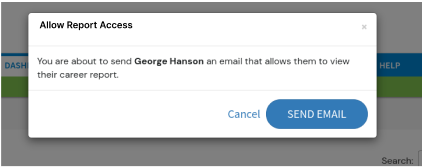
Confirm by Selecting Send Email
A confirmation message will appear. Select Send Email to complete the action.
✅ Once confirmed, the Allow Access button will disappear, indicating access has been granted.