

Send a Career Assessment
From Your Affiliate Dashboard
Watch: Video Tutorial for Sending Assessments
1
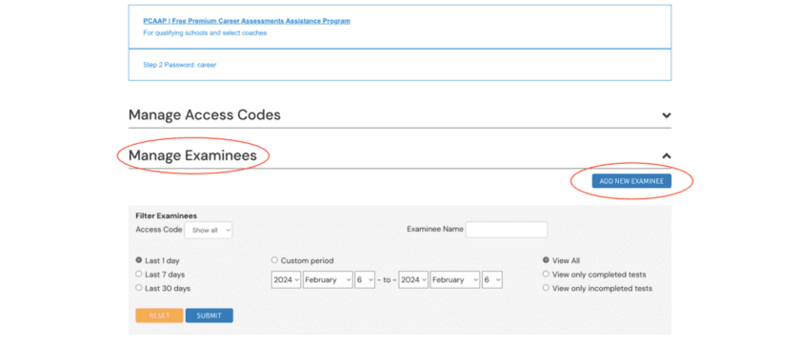
Open Manage Examinees and select the Add New Examinee button
2
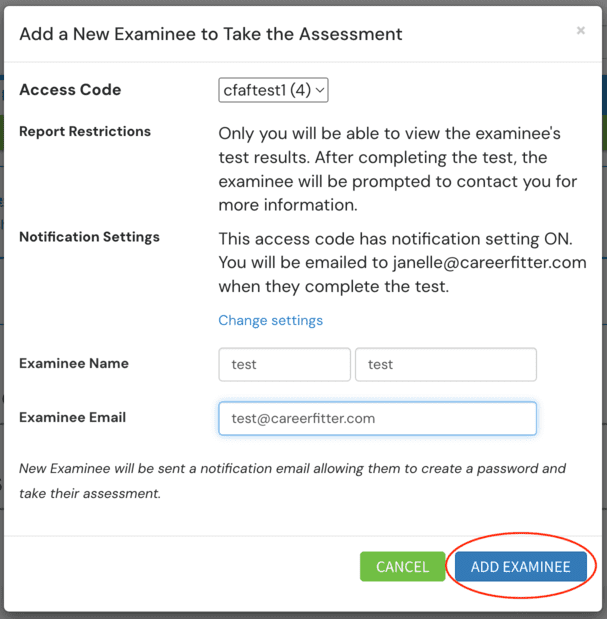
Select the Access Code you want to use and complete the form with your client's information
Report Restriction and Notification settings can be different for each Access Code.
3
Click Add Examinee at the bottom of the form
What Happens Next
- Your client will receive an email prompting them to begin the CareerFitter assessment. You will also be CC'd on this email in case you need to resend it.
- If Notification Settings for this Access Code are set to ON, you will receive an email when your client completes the assessment.
- If Report Restrictions are turned ON for your Access Code, your examinee will see a screen prompting them to contact you after completing the test — they will not be able to view their results until you release them.